Proximity Mobile - Content Management (for Space Managers)
This document applies to: Coworking & Workplace
Getting Started with the New Content Management System
Welcome to the help documentation for Proximity's new mobile app customization features. This guide will help you make the most of our industry-first customization tools.
Looking for the Proximity Mobile App: User Guide? Click Here
Quick Video Walkthrough & Start Guide 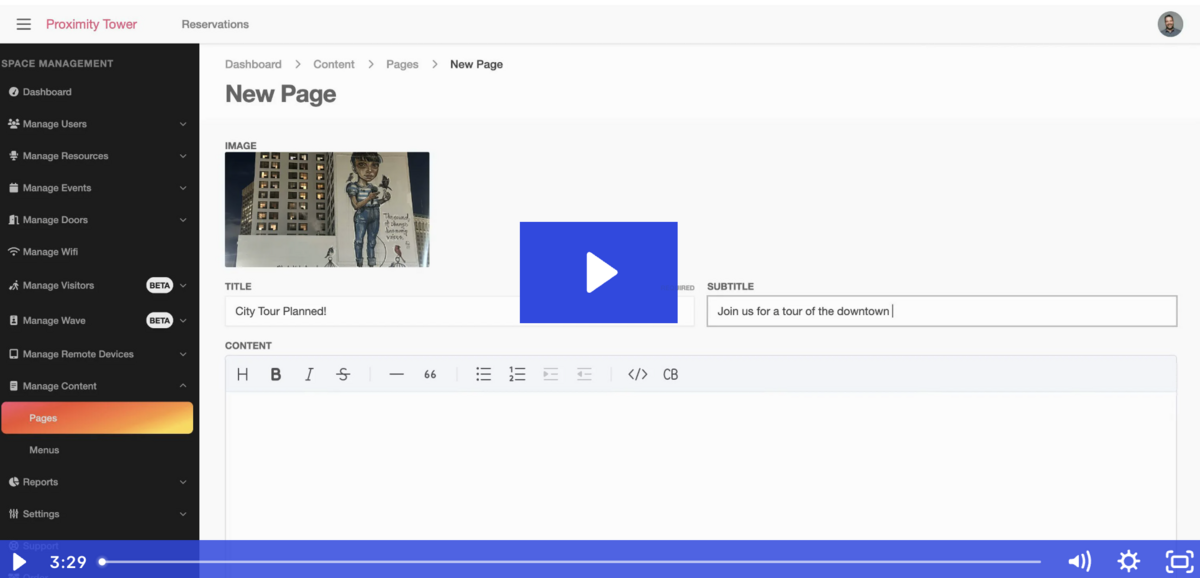
- Access the Content Manager
- Log in to your Proximity admin dashboard
- Navigate to the new "Manage Content" section in the left menu
- Click "Menus" to begin customizing your app
- Click "Pages" to begin creating content
- Customization Options
- Layout Arrangement: Drag and drop menu items to change their order
- Content Creation: Add custom pages for events, announcements, and resources
- Style Configuration: Adjust colors and styles to match your brand identity
- Preview Mode: See how changes will appear to members before publishing
- Best Practices
- Keep navigation intuitive with 4-6 main menu items
- Think about what your users need most often and quickly when they are opening your app
- Use consistent branding elements
- Update content regularly to keep members engaged
Pages
Pages are content items you can display within the Proximity Mobile app. Learn how to integrate them into your app's navigation in the Menus section below.
- Navigate: Go to
Manage Content > Pages - Add a Page: Click the
+ New Pagebutton. - Modify or Delete: Click
Actionsnext to an existing page.
Menus
Menus customize the structure and content displayed in your app, including Pages and other features. Preview your layout on the right hand of the screen.
- Navigate: Go to
Manage Content > Menus. - Select Menu: Choose the app menu you wish to customize. If you manage multiple buildings, you will need to customize the menu for each one individually.
Managing Menu Sections
- Add Section: Click the
Add Sectionbutton. - Delete Section: Hover over the desired section and click the
Xicon on the right. - Move Section: Hover over the desired section, then click and drag the six-dot icon on the left.
Section Types
- Table Rows: Displays items (Links, Pages, Files) in a list format.
- Horizontal Scroll Grid: Displays items (Links, Pages, Files) in a horizontally scrolling grid.
- Vertical Grid: Displays items (Links, Pages, Files) in a vertical grid.
- Colored Quick Links: Displays items (Links, Pages, Files) as distinct, colored links.
- Favorite Keys: Provides users quick access to their favorited keys.
- My Reservations: Shows the user's upcoming reservations.
- Space Events:COMING SOON
- Space Hours: Displays the operating hours for the space.
- Space Amenities: Lists the amenities available at the space.
- Space Locations: Shows a map with the space's location.
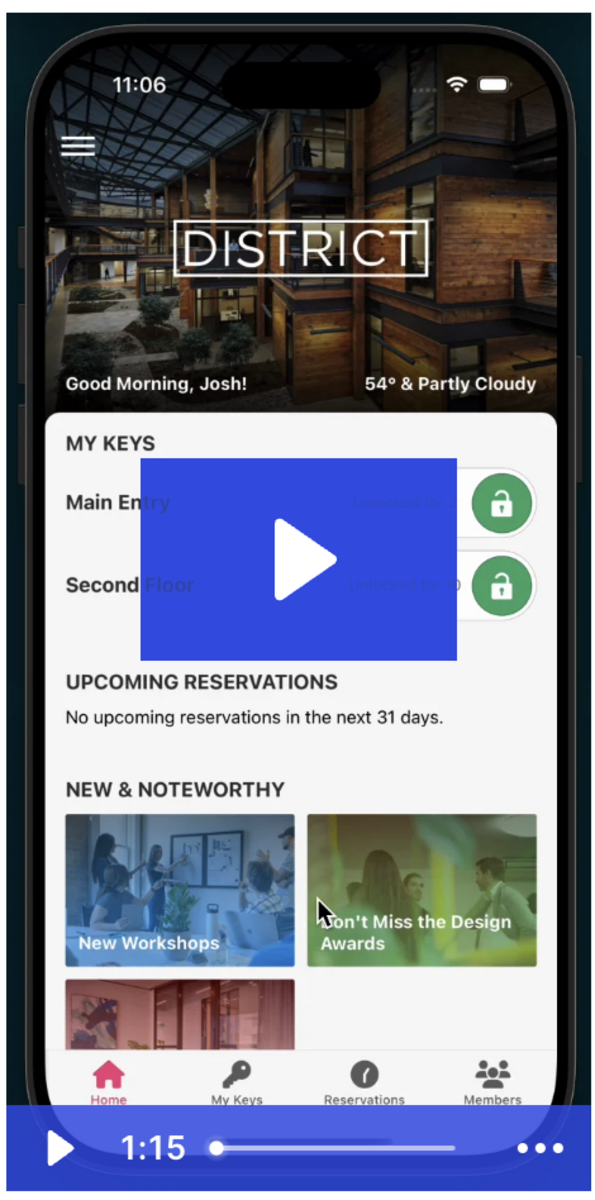
App Video Walkthrough
Frequently Asked Questions
What happens if I don't customize my app contents? We'll implement a default layout for your space that maintains your branding and essential functions. You can update your app layout and content anytime through the Dynamic Content system. Changes go live immediately the next time users refresh or reload the app.
Will members need to update their app? Members will need the latest version of the Proximity app to experience the new features. Most will receive automatic updates through their device's app store, but you may want to notify members to ensure they update.
How do the different layout options work? We offer several layout options such as Table, Horizontal Grid, Vertical Grid, and QuickLinks. Each provides different ways to organize your content. QuickLinks offers additional customization with color overlays or solid color buttons to add visual interest.
How much text can I display in each section? The app allows for approximately 3 lines of text total, including both title and description. If your title extends to two lines, you'll have one line remaining for description text. We recommend keeping titles concise for optimal layout.
How do I add images to my custom pages? The first image in your space's photo gallery (Under Settings > Brand and Content) will automatically be used as the header image. To change this, simply update the first image in your photo gallery through the standard admin interface.
When do my changes become visible to members? Changes go live immediately after clicking "Save." Members will see your new layout the next time they refresh or reload the app - no need to wait for app store approvals or system updates.
Can I preview my changes before publishing? Yes, the Content Management system includes a preview mode that shows how your changes will appear to members before you click "Save" to publish them.
Will my logo display properly in the new app? Yes, the system automatically uses your dark background logo from your space settings. If you need to update this logo, you can do so through your standard space configuration options.
Need Additional Help?
Our team is ready to assist with any questions about implementing these exciting new features. Contact us through the support bubble inside the Proximity Platform
We Want Your Feedback!
As we roll out these new customization features, your input is invaluable to us. Your experience and suggestions help shape the future of our platform and ensure we're meeting the real needs of space operators like you.
Have you discovered a feature you love? Encountered something that could work better? Or do you have ideas for future enhancements? We want to hear from you!
Please take a moment to share your thoughts, suggestions, and experiences with our new mobile app customization tools.
Your insights directly influence our development roadmap and help us continue to deliver industry-leading solutions that make managing your space easier and more effective.
This documentation will be updated regularly as we add new features and capabilities.